MeetQuest GUIDE
How MeetQuest works
MeetQuest gives you a reason to say hello and a way to keep a new connection going. You can start with someone nearby, complete a short quest together, and decide whether to chat or plan an activity.
1. Choose when to be discoverable
Create your profile and choose interests that give others a starting point for conversation. In Nearby Players, discovery is your choice: make yourself visible when you are open to meeting someone, or switch to hidden when you are not. Location access helps find nearby players; your precise location is not displayed to them.
You can quest wherever you meet someone. You do not need to be inside a designated Quest Zone. A nearby listing is an invitation to connect, not a guarantee that someone is available: ask first and respect their answer.
2. Start with a code and a Quick Quest
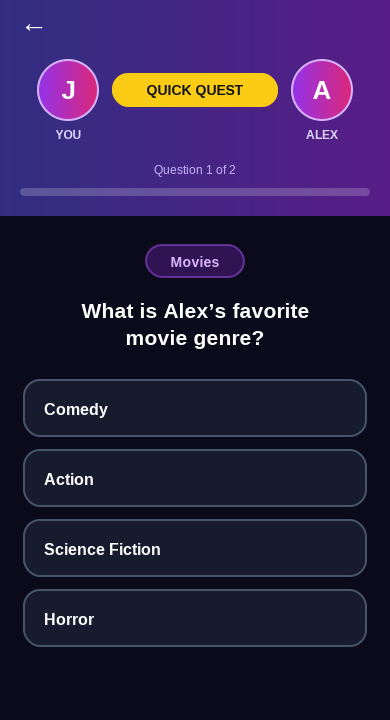
When you meet in person and both want to connect, share the temporary code shown in MeetQuest or enter the other person’s code. Keep the code between the people taking part. The short Quick Quest uses interests as conversation starters; each person answers questions and the result determines the points awarded.
For example, if you both enjoy movies, use that shared interest to talk about a film you liked before starting the questions. You do not need a perfect introduction—just mutual interest in a conversation.
3. Get to know each other at your own pace
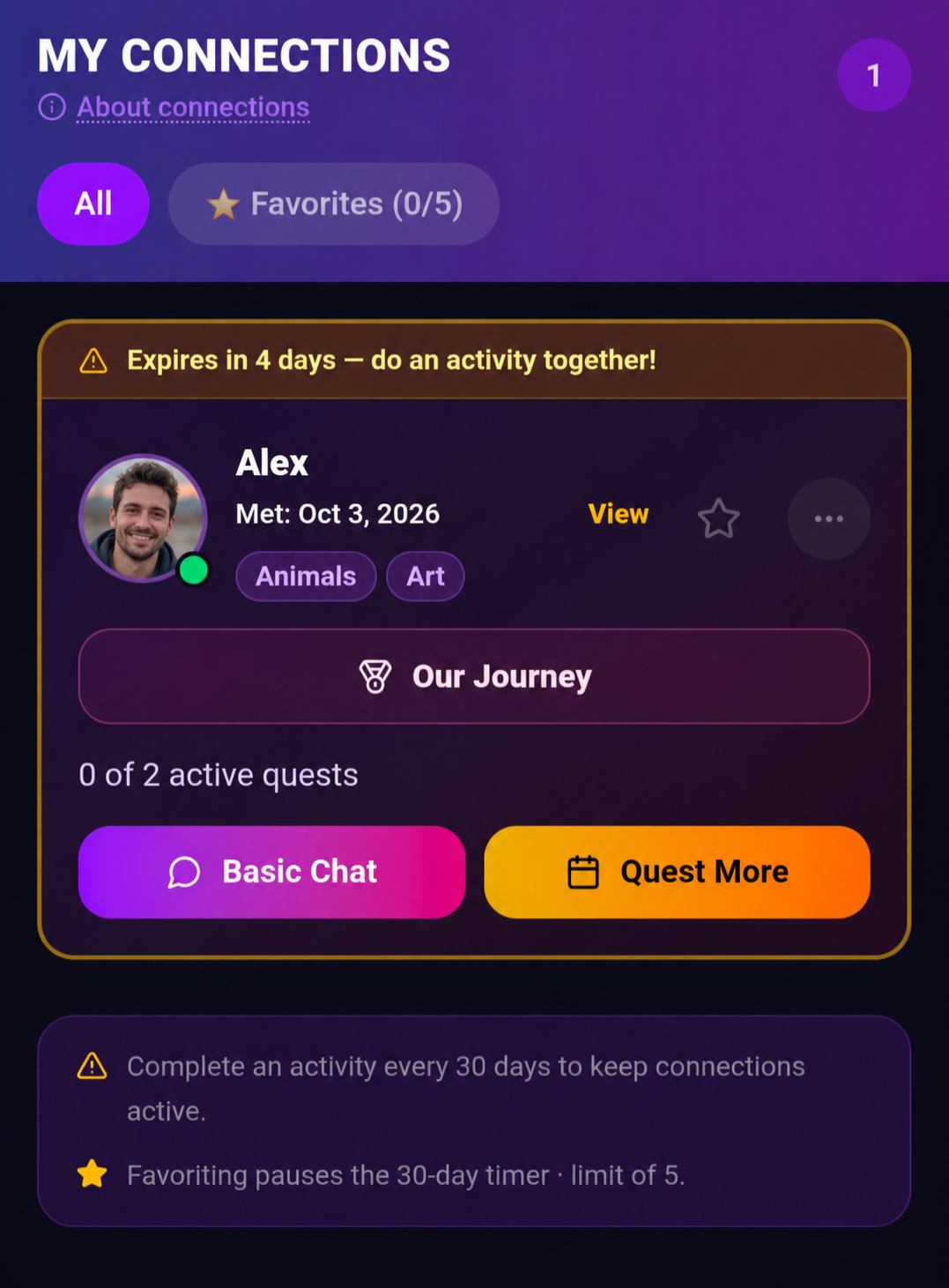
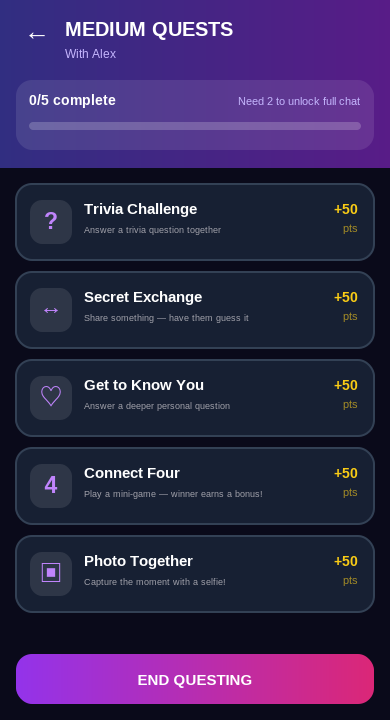
Five Medium Quests offer different ways to interact: get-to-know-you questions, trivia, a photo together, a game, and more conversation prompts. You can stop and return later. As you complete quests, more chat and planning options become available. Completing all five creates a full connection.
Choose a shared photo only when both people are comfortable. Quests are prompts for real interaction; you never owe someone a photo, personal answer, or continued conversation.
4. Turn a conversation into a plan
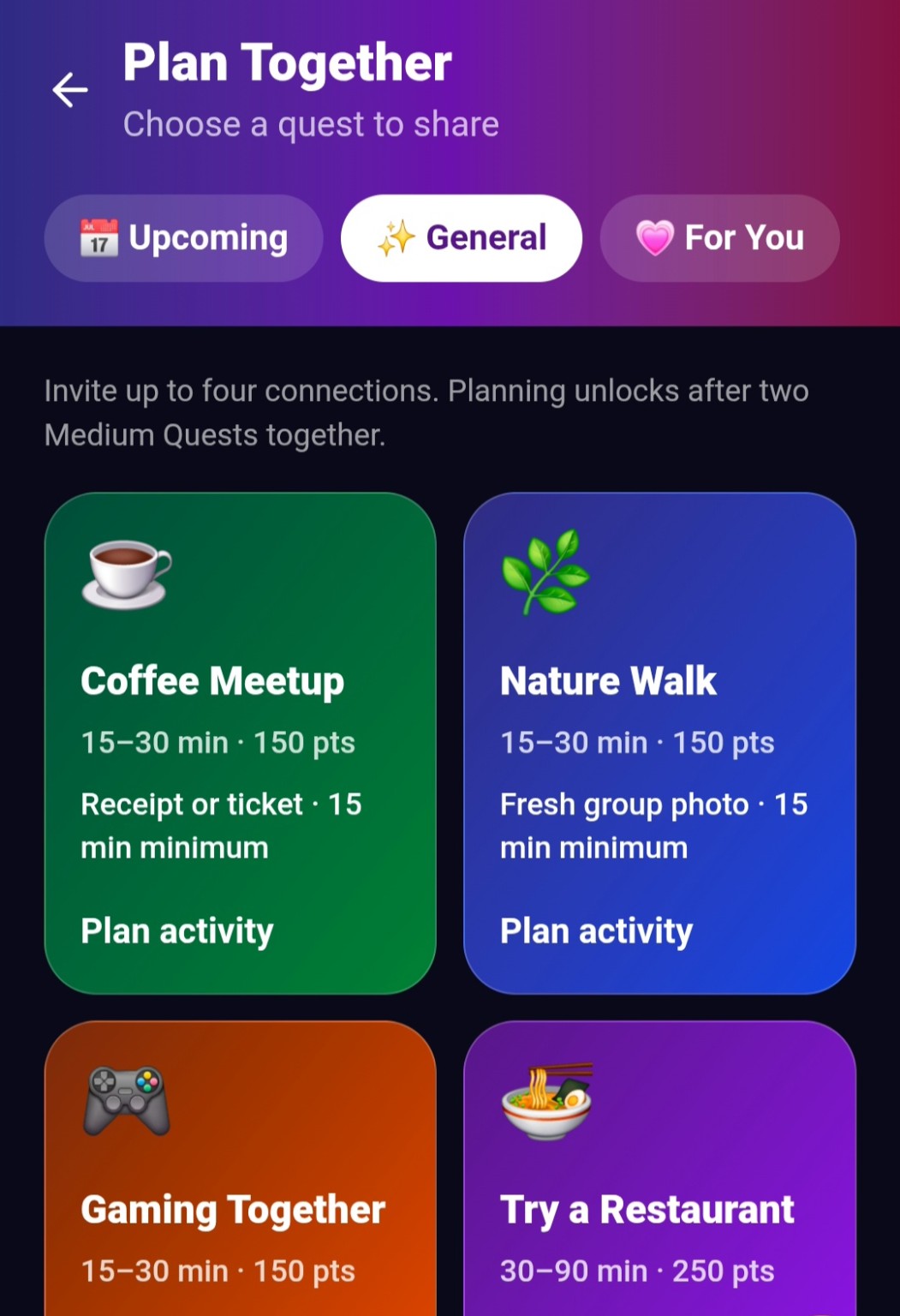
Choose an activity, invite a connection, and suggest a date and time. The other person can accept, decline, or suggest a different time. Start with something easy to agree on, such as a short coffee meetup or a walk in a busy public park. Confirm the meeting place, expected cost, and time together before you go.
After participating, follow the activity’s check-in and proof instructions. Some activities use receipts; others use a photo. Submit genuine proof from that activity. Verification and eligibility checks determine whether points are awarded; repeat activities have cooldowns shown in the app.
5. Recognize someone’s work
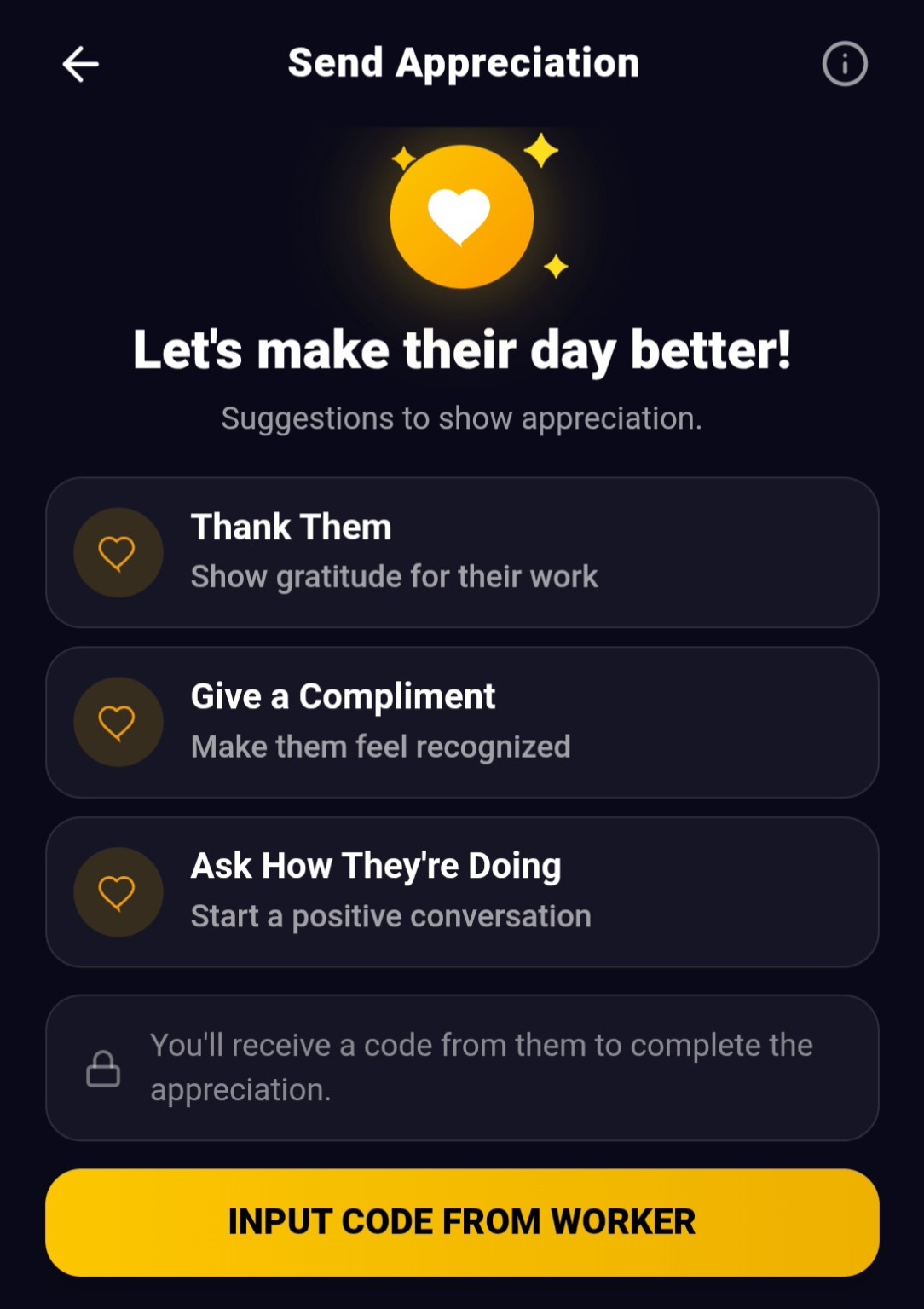
Worker Appreciation is a shorter way to thank a participating worker. Use the appreciation code flow together and wait for the completion screen. A thank-you, a sincere compliment, or asking how their day is going can be enough. Keep it brief while they are working and accept it if they cannot participate.
Workers control their worker visibility and appreciation settings. Job details entered for work setup are private and are not displayed to other users on their profile.
Points and gift cards
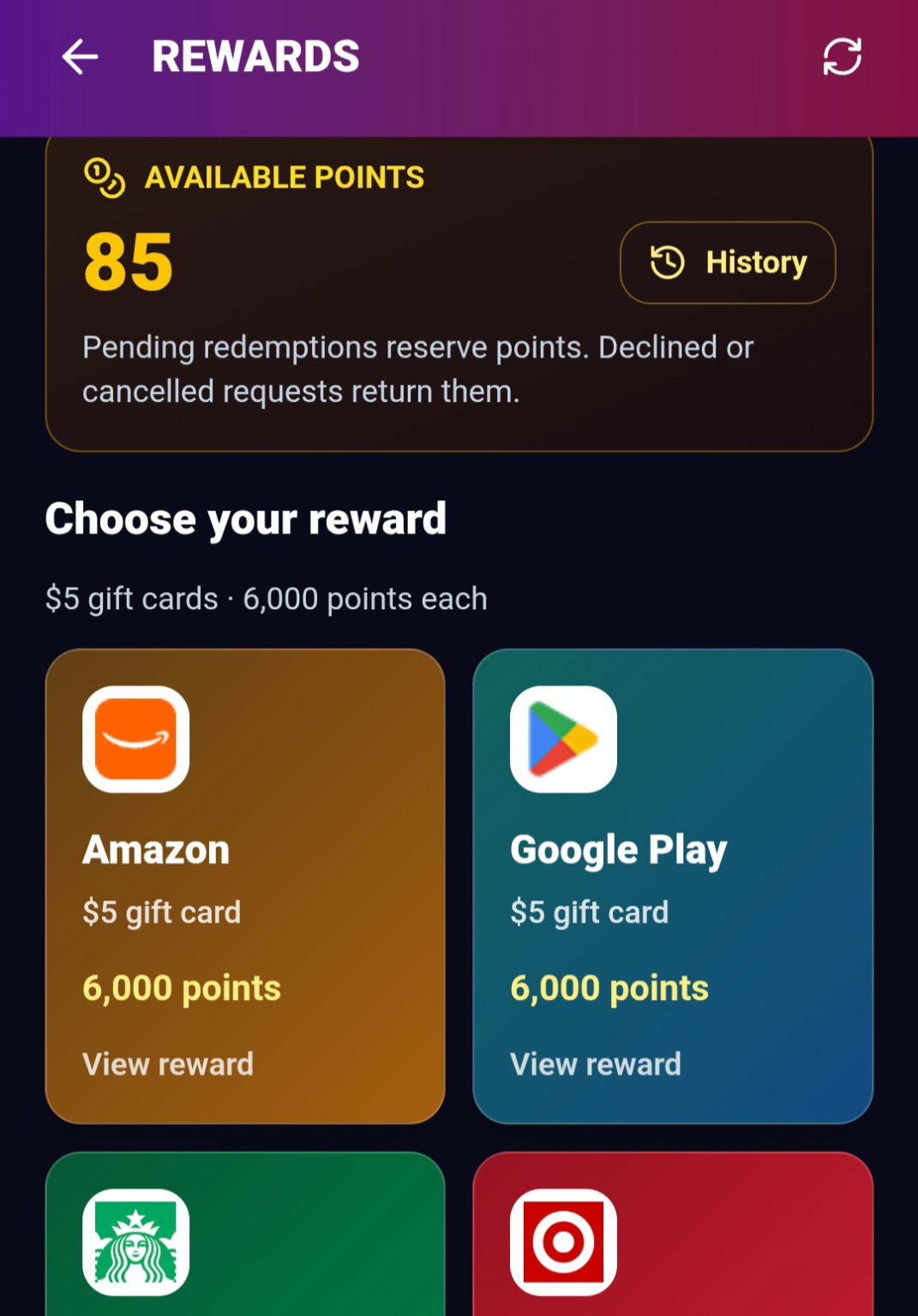
Eligible interactions earn points. The Rewards screen shows your balance, the current catalog, and each reward’s point cost. The current $5 gift card options cost 6,000 points each. Requests are reviewed and fulfilled manually; submitting a request does not deliver a card instantly. Check your redemption status in the app, and contact support if you need help.
Points have no cash value. Do not submit fake interactions, reuse proof, or create accounts to collect rewards. Viewing or clicking an advertisement does not earn quest points. Vendor listings do not imply sponsorship or endorsement of MeetQuest.
Before your first meetup
Use a public place, arrange your own transportation, and tell someone you trust about your plans. MeetQuest does not perform background checks. You can hide your profile, block someone, or report a concern in Privacy & Safety.
Read the safety guide →